Wings Fight Controls Guide
Input maps and habits for arcade flight combat across every Roblox platform.
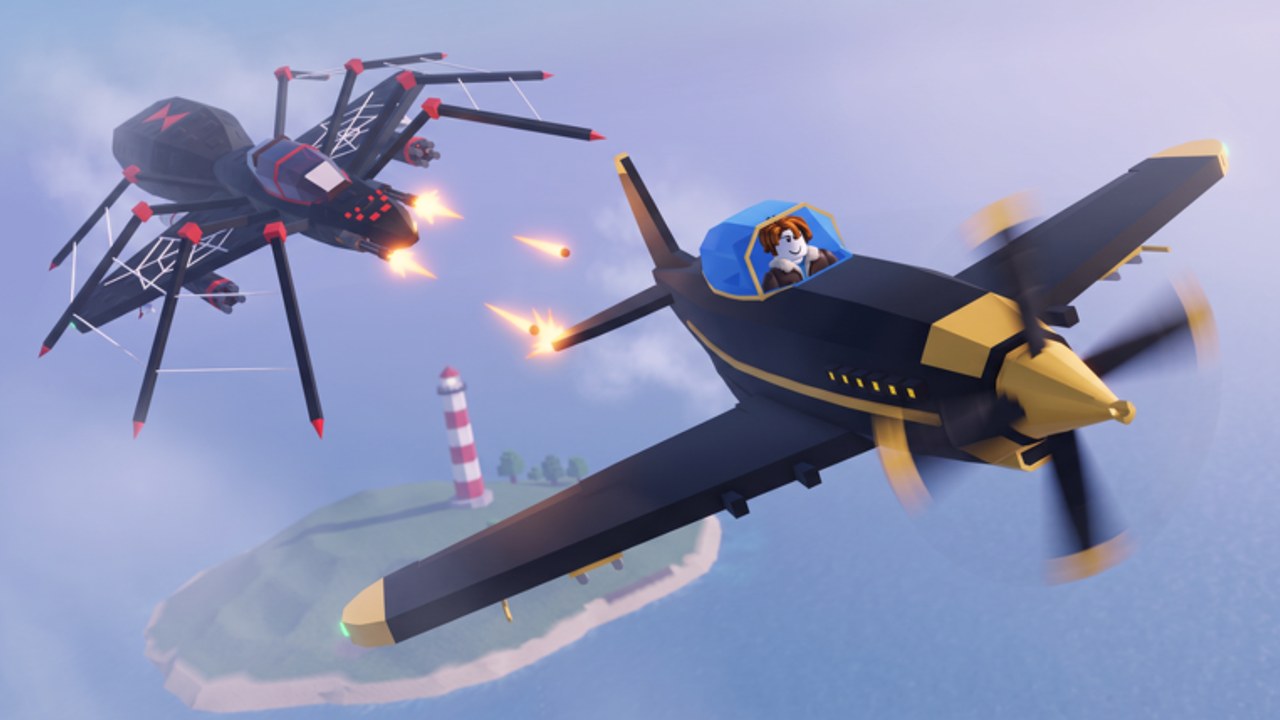
Clean inputs win more fights than a rushed hangar upgrade. This Controls guide covers how to pilot Wings Fight on PC, mobile, and console (including PS5 via Roblox). Exact key labels can shift slightly between Clickingg patches, so treat the tables as typical Roblox flight-arcade defaults—confirm bindings in your client settings if a control feels wrong.
Pair this page with Getting Started and Combat Tips. Plane role choice still matters: see Planes Hub.
Shared control ideas
Regardless of device you will always:
- Move / bank the airplane through the sky
- Aim the nose or reticle toward targets
- Fire primary weapons
- Boost for chase or escape (finite or regenerating energy in arcade fashion)
- Interact with UI: shop, codes, settings
- Collect mid-air repairs and ability pickups by flying through them (Mid-Air Pickups)
Master energy discipline early. Empty boost in a straight line is the most common beginner death.
PC (keyboard & mouse)
| Action | Typical binding |
|---|---|
| Pitch / turn assist | Mouse aim + WASD |
| Fire | Left mouse button |
| Boost | Shift or a side mouse button |
| Camera adjust | Mouse movement / scroll if supported |
| UI click | Mouse |
| Chat | / or Roblox default |
PC habits
- Lower mouse sensitivity until you can track a circling target without oversteering.
- Keep fingers ready to strafe-bank while micro-adjusting aim—do not steer only with the mouse yaw if WASD adds finer control in this build.
- Rebind boost away from keys you smash when startled.
- Close unnecessary overlays so the Codes button remains clickable after victories.
PC mouse players unlock interceptor potential fastest on the Tier List.
Mobile (touch)
| Action | Typical control |
|---|---|
| Move | Left virtual stick |
| Aim / camera | Right touch drag |
| Fire | Thumb button |
| Boost | Separate thumb button |
| UI | Tap icons; may need expanded menus |
Mobile habits
- Play landscape with a stable grip; claw or two-thumb layouts beat one-hand tilting.
- Increase touch deadzones if your plane jitters.
- Prefer slightly tankier early planes until tracking improves (Best Starters).
- Pause in safe moments to open Shop—do not type codes mid-duel (How to Redeem).
Console / PS5 via Roblox
| Action | Typical control |
|---|---|
| Fly / bank | Left stick |
| Aim / camera | Right stick |
| Fire | RT / R2 style trigger |
| Boost | LT / L1 / face button depending on Roblox mapping |
| UI select | Face buttons + d-pad |
Community videos show Wings Fight running on PS5 through Roblox. Expect:
- Stick aim to feel floaty until sensitivity is tuned in Roblox or experience settings
- Slower text entry when redeeming codes—budget time before a match heats up
- No access to PC executors; you can ignore script ads entirely (Scripts Hub)
Camera fundamentals
- Keep enemies near the center of the screen before firing long bursts.
- When chased, combine pitch and yaw so your trail is harder to read—pure vertical loops become predictable.
- After a pass, glance for pickup glow before re-engaging.
- If the camera collides with geometry, boost gently away rather than panic-spinning.
Fire & boost timing
Arcade lead shots need a little anticipation. Fire where the enemy will be, not where they are, especially against interceptors. Tap boost to close or break—holding boost until empty strands you in front of a tank’s guns.
Practice in messy 10-player furballs only after you can hit a single target consistently. Deathmatch chaos is a terrible first aiming coach.
Accessibility & comfort
- Enable whatever Roblox vibration or aim helpers your platform offers if they help without violating your personal challenge goals.
- Take breaks; flight games strain necks and thumbs.
- Colorblind pilots should raise contrast and rely on motion trails, not hue alone, when hunting repair orbs.
Troubleshooting inputs
| Problem | Fix |
|---|---|
| Plane ignores keys | Click into the game window; close chat focus |
| Sticky virtual buttons | Restart experience; reduce UI scale |
| Controller drift | Recalibrate stick; check deadzone |
| Cannot open shop | Wait until fully spawned; try different HUD edge |
| Boost feels useless | You may be empty—coast and regenerate |
Training routine (15 minutes)
- Two lives focusing only on smooth camera follows
- Two lives focusing only on boost bursts under two seconds
- Two lives prioritizing repair pickups over kills
- Remaining time: apply all three in real fights
Then read Combat Tips and plan a hangar buy with Unlock Planes.
Related pages
Your fingers learn faster than your wallet. Dial controls in before you blame the starter jet.
Frequently Asked Questions
Quick answers for Wings Fight pilots.
What are the default Wings Fight keybinds?
Expect WASD plus mouse aim on PC, virtual sticks on mobile, and dual-stick plus triggers on console. Confirm in your client because patches can relabel bindings.
Can I play Wings Fight with a controller on PC?
Roblox generally supports controllers when connected. Use console-style habits: left stick fly, right stick aim, triggers for fire/boost.
Why is my boost not working?
You may be out of boost energy, UI-focused in a menu, or still loading. Coast to regenerate and ensure the game window is focused.
How do I open codes on console?
Highlight the Codes/Gift/Shop HUD element with the controller and enter text via the on-screen keyboard. See How to Redeem.
Should mobile players lower sensitivity?
Usually yes at first. Raise it gradually as tracking improves so interceptors become viable.